
We are here to help.
Little Wordsmiths gives your child one short learning trail a day, for ages 2 to 8, with over 4,000 illustrated words in 26 languages.
Talk to a real person
Questions, trouble with the app, billing, schools, or anything else. Write to us and we will help.
hello@littlewordsmiths.com We aim to respond within two business days.First day in three steps
Download the app on iPhone, iPad or Android.
-
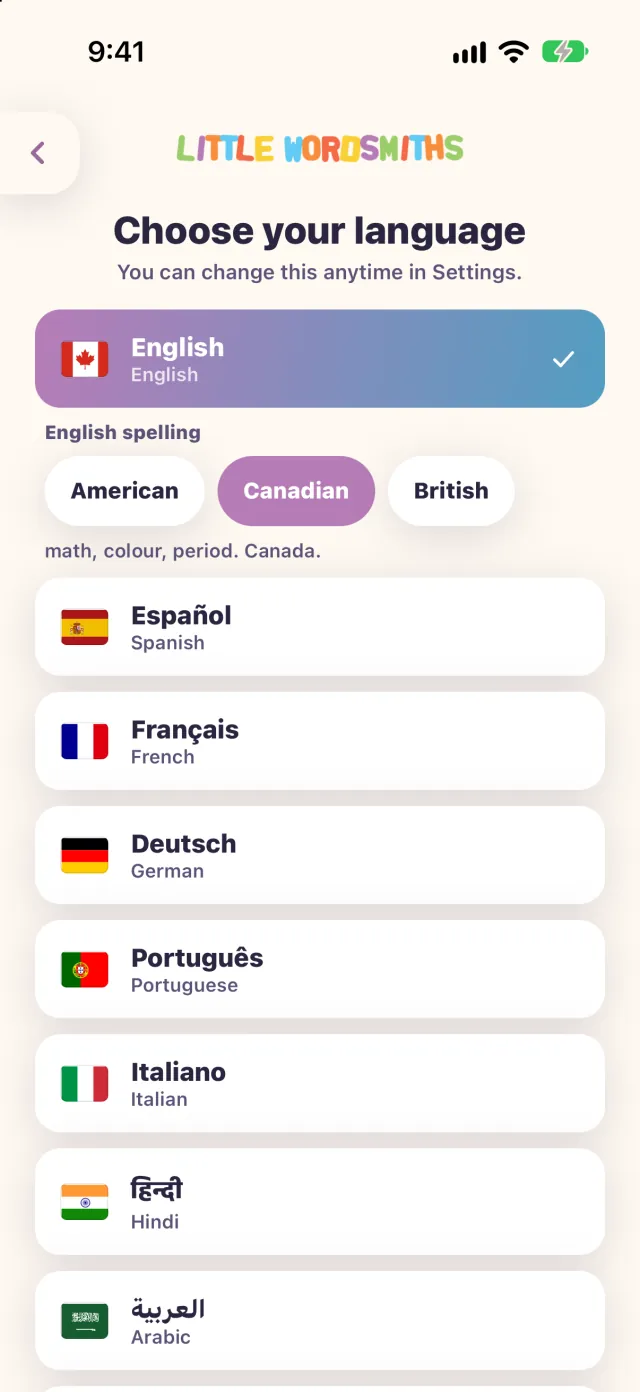
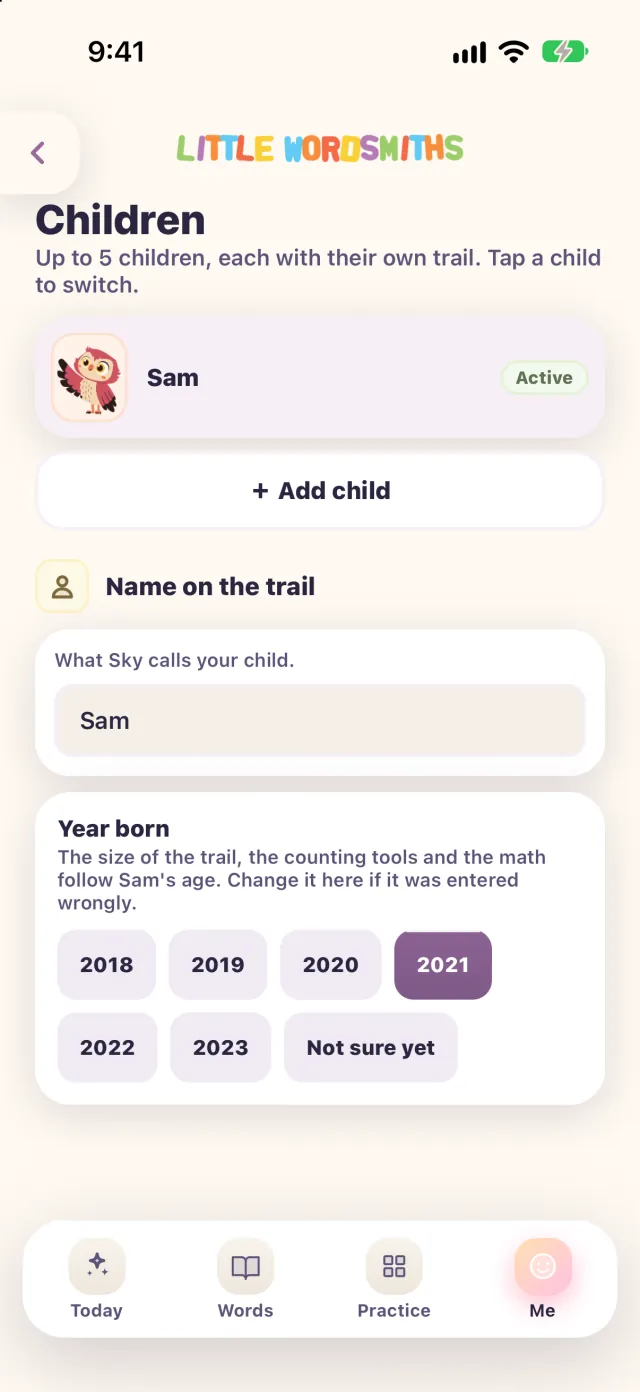
Choose your language and add your child
Choose the language your child learns in, then add your child.
-
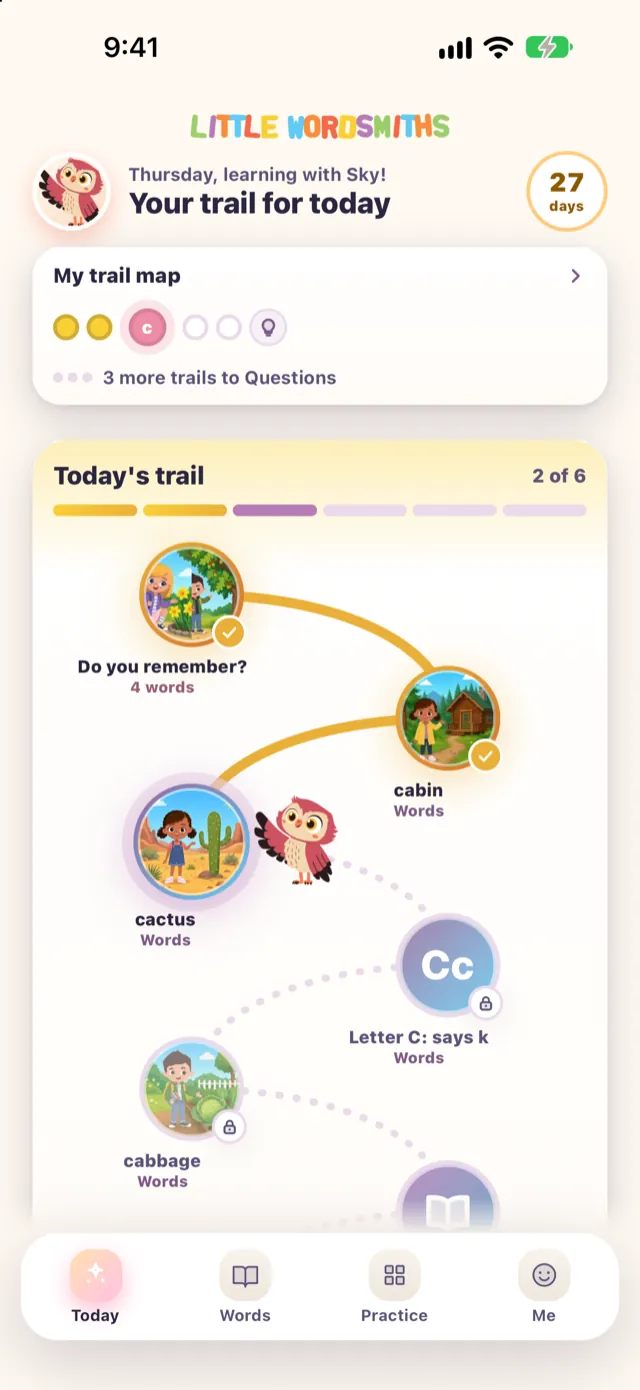
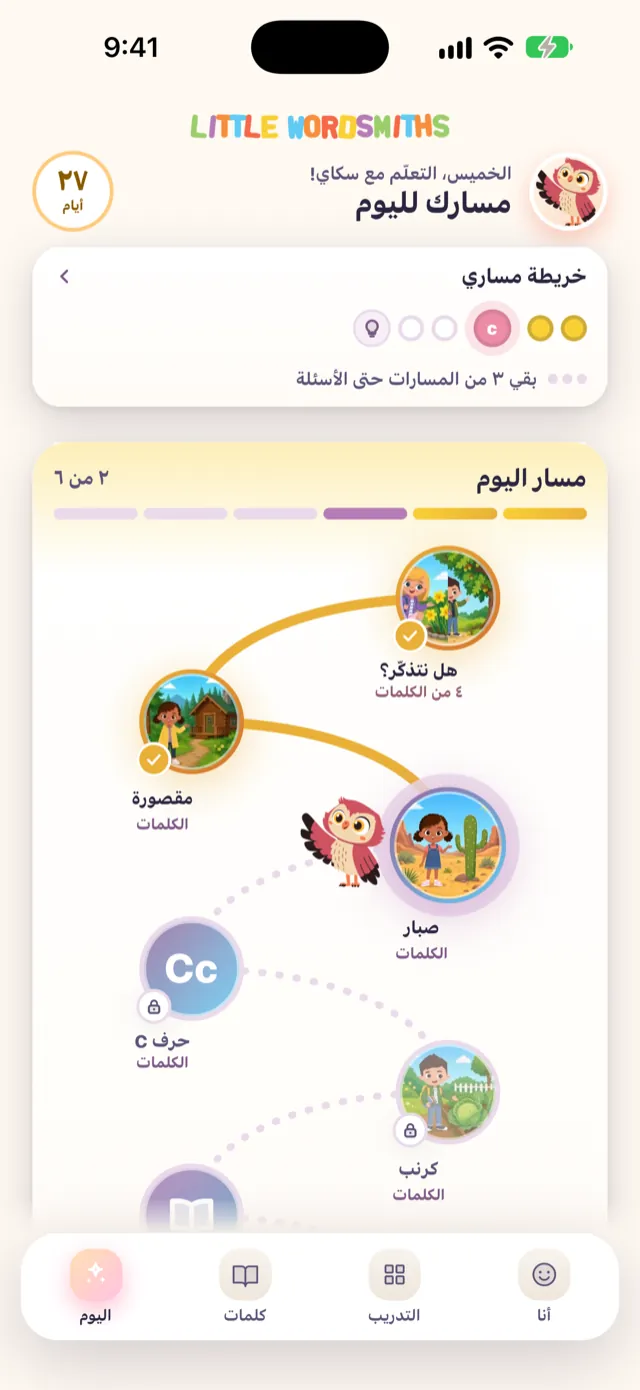
Open Today
The app opens on Today, where Sky the owl has laid out your child’s trail for the day: a few stops, one at a time.
-
Finish the trail
When the day’s trail is finished, Sky says goodbye for today.
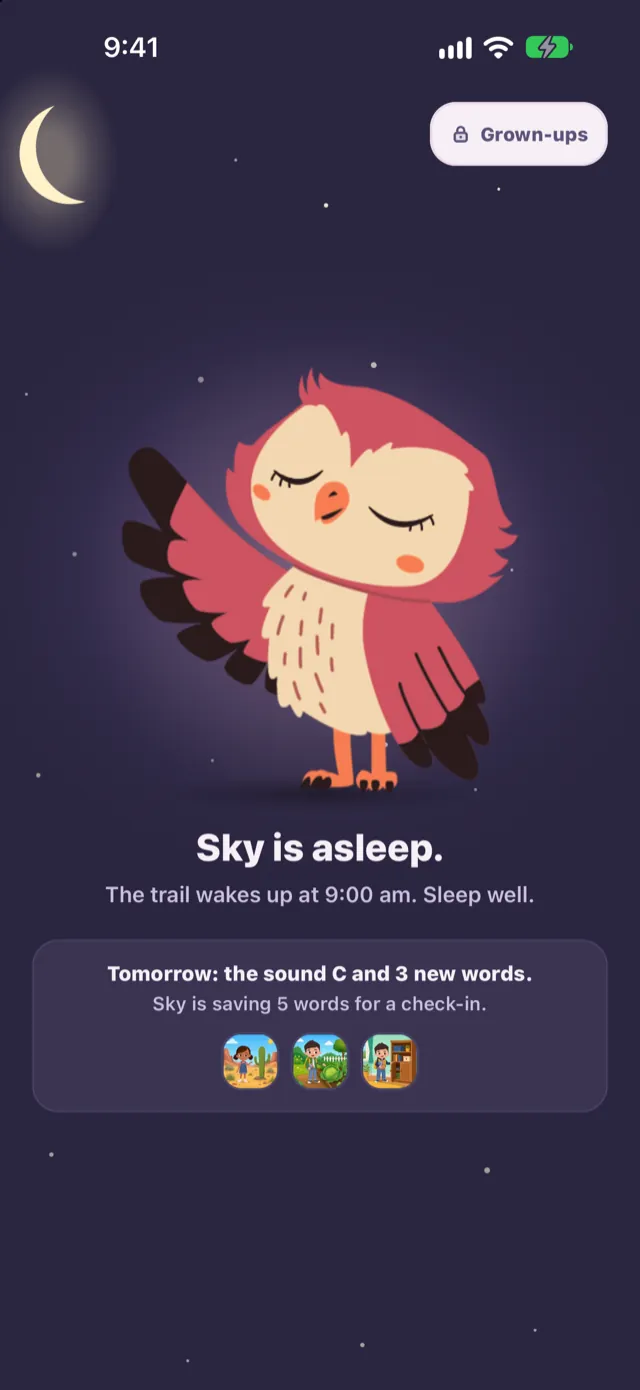
Little Wordsmiths needs an internet connection, because the words, pictures and recorded audio come from our servers. You can look around as a guest, or create an account so progress is saved for each child.
Common questions
Open a question to see the answer.
Getting started
2 questions
How do I get started?
Download the app on iPhone, iPad or Android, choose your language, and add your child. The app opens on Today, where Sky the owl has laid out your child’s trail for the day: a few stops, one at a time. When the day’s trail is finished, Sky says goodbye for today.
Little Wordsmiths needs an internet connection, because the words, pictures and recorded audio come from our servers. You can look around as a guest, or create an account so progress is saved for each child.
Can I add more than one child?
Yes, up to five. In Grown-ups you can add each child with their own name and, if you like, their birth date. Every child keeps their own progress and days, and you can switch between them at any time.
Grown-ups sits behind a gate, a short question or a PIN you choose, which is designed to keep a young child out of the settings.
Subscription
3 questions
What does a subscription include?
The whole library for every child in the family: all 4,000+ words unlocked, every word spoken in 26 languages, writing and reading practice for every letter, and up to five children, each with their own progress. The price is shown in the app, in your currency, before you confirm.
How do I restore a subscription I already paid for?
Open the subscription screen in the app and tap Restore purchases. Make sure you are signed in to the same Apple Account or Google account you used to buy it. The app will tell you honestly whether anything was found to restore.
If your words are still locked after restoring, email us and we will sort it out.
How do I cancel or change my subscription?
Subscriptions are billed by the app store, not by us, so they are cancelled there:
- iPhone or iPad: Settings → tap your name → Subscriptions → Little Wordsmiths.
- Android: Google Play Store → profile icon → Payments and subscriptions → Subscriptions.
Cancelling stops the next renewal. You keep full access until the end of the period you have already paid for.
Classes
4 questions
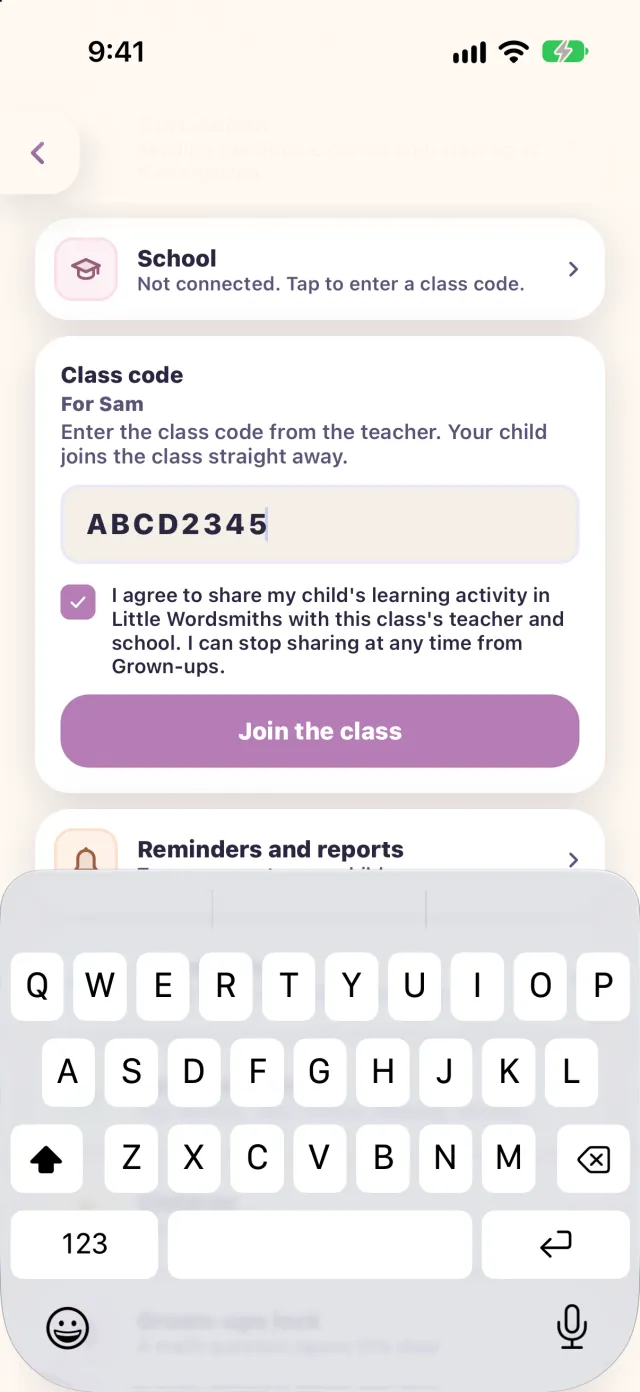
How do I join my child’s class?
- Ask the teacher for the class code. It has 8 characters. Capital letters, spaces and dashes do not matter, and the code never uses the letters I and O or the digits 0 and 1.
- In the app, open Grown-ups, then School, and enter the code.
- Read the agreement and tick the box. Sharing starts only after you do.
Joining needs a signed-in account with a confirmed email address, and you must be a grown-up who manages that child. A class code is not a child invite code, so enter it under School, not in an invite box.
The class code does not work
- “That code was not found. Check it with the teacher.” Check each character, and ask the teacher to read it out or send it again. A teacher can make a new code, and the old one stops working at once.
- “That class is closed. Ask the teacher for a new code.” The class is not taking new learners.
- “This child is already in another class.” A child is in one class at a time. The app offers to move them, which leaves the first class and stops sharing with it.
- A message about confirming your email, or about an agreement for this child. Confirm your email address, and open Account in Grown-ups first.
- “Too many tries.” Wait a minute and try again.
How do I leave a class and stop sharing?
Open Grown-ups, then School, and choose Leave the class. Sharing with the teacher and school stops at once. Your child’s learning activity stays with your family. Joining later needs the agreement again.
I am a school or a district
Teachers and school leaders see trail progress for the children whose families join a class with the teacher’s code and agree to share. Read how schools use Little Wordsmiths, and email us with roughly how many children you are planning for.
Account and data
2 questions
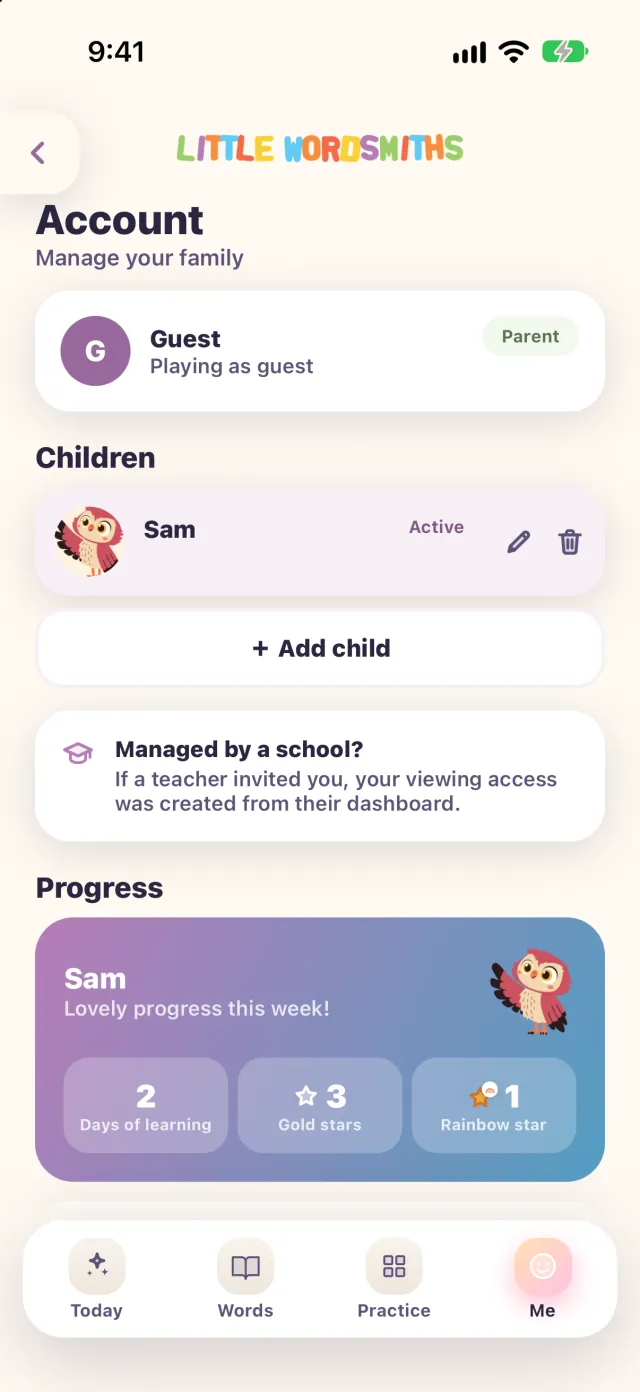
Reminders: how do I turn them on or off?
Reminders go to the grown-up’s phone. Open Grown-ups, then Reminders and reports. Each reminder has its own switch: the daily coach reminder, the word of the day, finishing a word, and new words. Your phone also has to allow notifications for Little Wordsmiths, which you can change in the phone’s own settings.
How do I delete my account and data?
In the app, open Grown-ups (it opens with a short question or your PIN), then tap Account and plan. Scroll to the Account heading at the bottom and tap Delete Account and Local Progress Data. The app asks Delete account? and you confirm with Delete. You can also request deletion from our account deletion page without opening the app.
Deleting ends your access at once. In the next nightly run your account details are erased and the profile of each child you are the only guardian of is removed, then permanently erased after 30 days; a child with another guardian stays with them. See our Privacy Policy for exactly what is erased and when.
Sound and languages
3 questions
The audio is not playing
Check that the media volume on your device is up, and that the sound is not going to a speaker or headphones you are not using.
Audio streams from our servers, so a very weak connection can stop a word from speaking. Try again on a stronger connection, and if a specific word is still silent, tell us which word and which language and we will fix that recording.
What languages does the app support?
Every word is spoken in 26 languages: English plus 25 more. Choose the language your child learns in, and the app’s screens and words follow it, right to left for Arabic, Urdu, Persian and Hebrew. In English you can pick American, Canadian or British spelling.
Accessibility
We are working continuously to make the app usable for every child. If something is hard to see, hear or reach, please tell us, it genuinely shapes what we build next. See our accessibility statement.

Write to us
Email hello@littlewordsmiths.com and we aim to respond within two business days.
Little Wordsmiths, Inc., 7500 Highway 27, Unit 22 Upper, Vaughan, Ontario L4H 0J2, Canada.